
Divi User Guide
Here is a useful guide on how to use Divi, with links and some CSS tricks.
1. Divi theme documentation
Have a look at Getting Started With The Divi Builder. This shows you ALL the controls and features you have.
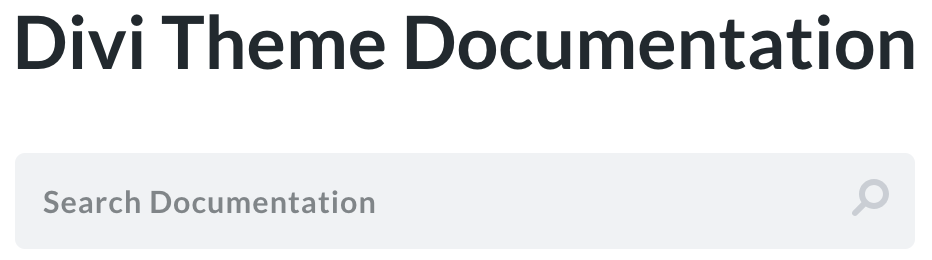
For information on the settings for each module, click on the button to visit the Divi docs. At the top, below the page heading, click into the form field Search documentation and enter your query. Such as Text Module or Image Module. The resulting page will show you ALL settings and variables you can perform within that one module.
2. Creating a new page
Click on the video to view how you add a new page and the various options you have.
- A new page – click Premade Layout then choose New Page Layout from the library, with header and text.
- Duplicate an existing page – exact copy, with content.
- Choose a library page – choose New Pantry Layout from the library.
- A blank page – choose Build from scratch.
Creating a new pantry page
- Firstly, create the new pantry page using the New Pantry Layout, giving it the name of the location.
- Amend the page text and upload a new flyer.
- Visit Google Maps in a new tab and type in the location and the postcode. This should display a pin location on the map. Click the Share icon > click the Embed a map tab > click Copy HTML. Go back to the new pantry page and click on the map settings cog and delete the existing code and paste in the new code. In the code you pasted find and edit the following settings width=”100%” and height=”500″ and click the green tick to save.
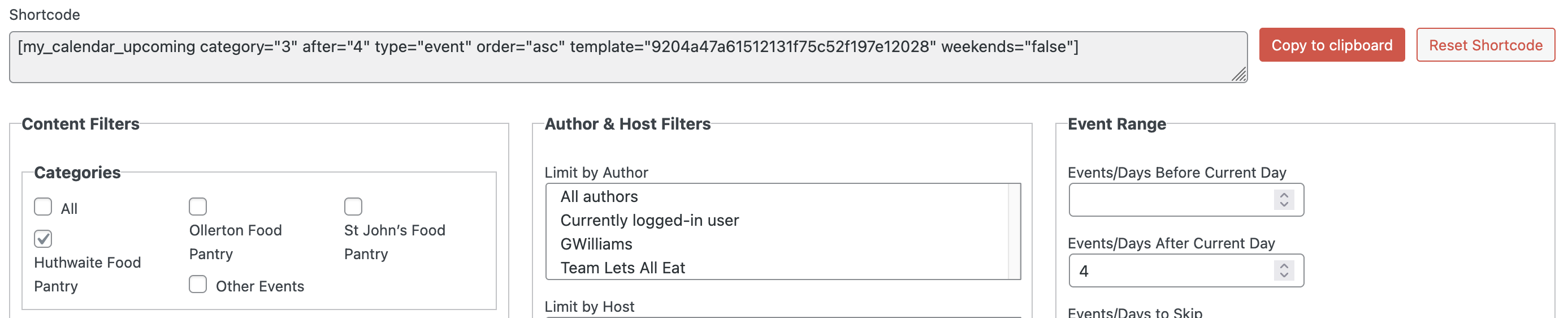
- Next you need to add the new pantry to My Calendar. In this order, you will need to create a new: Location and Category. Once added you will then need to create a Shortcode to add to the new page. Click on Shortcodes > click the Upcoming tab > choose the new category under Categories and untick the All option. Set the Events/Days After Current Day to 4. Click on Generate Shortcode > click on Copy to clipboard > paste in the new pantry page at the bottom.
3. Module presets
Presets are useful for styling modules very quickly. Once you have created a style for a module, such as a text, button or image, you can save it to apply to future modules. I have set some already for the various items already on the website. For instance full width buttons that will fill a column, polaroid style images, grey text boxes.
4. CSS hacks
Vertically align items in columns
Open up the row module settings and go to: Design > Sizing > click on Equalise Column Heights
Next, click on Advanced > Custom CSS > Module Elements and paste the code below into the Main Element:
align-items: center;
Column order
Open up the row module settings and go to Advanced > Custom CSS > Module Elements and paste the code below into the Main Element:
display:flex;flex-wrap:wrap;
Example
Switch the order of a two column row.
In the row settings > Content, click on the first Column settings and go to Advanced > Custom CSS > Module Elements. Click on the responsive view icon to display the Desktop/Tablet/Mobile icons. Then paste the code below into the Main Element – with the desktop icon selected:
order:1;
Then paste the code below into the Main Element – for the Tablet/Mobile icons:
order:2;
Go back to the main row settings > Content, click on the second Column settings and go to Advanced > Custom CSS > Module Elements. Click on the responsive view icon to display the Desktop/Tablet/Mobile icons. Then paste the code below into the Main Element – with the desktop icon selected:
order:2;
Then paste the code below into the Main Element – for the Tablet/Mobile icons:
order:1;

5. Launch the site
Follow the instructions on the video to launch the website.
- In the Menu, you need to remove /lets-all-eat-welcome-page/ for the Home link settings.
- Then, go to Settings > Reading > and change the Homepage to point to Let’s All Eat – Welcome Page.
- This will now switch from the holding page to the fully working website. You can always switch back to the holding page if you need to do any maintenance on the website.
You know where I am should you need any help or advice.